
Step 1
The password self-service can be accesses via the link
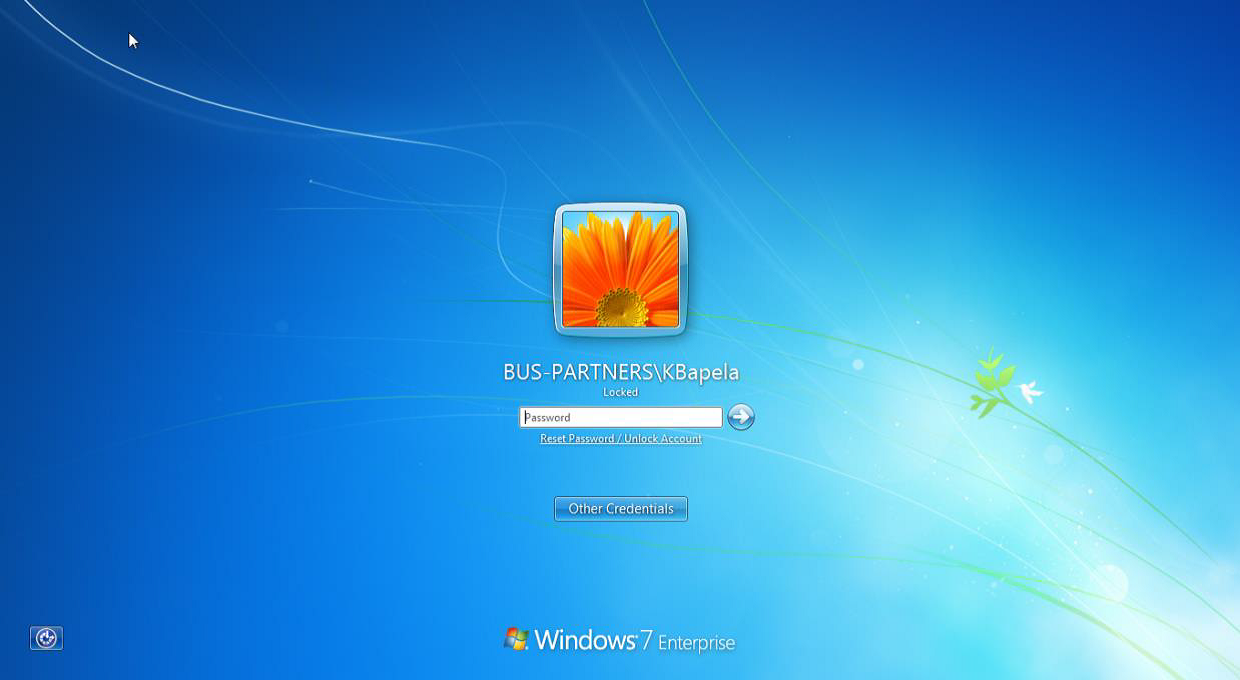
or by clicking on “Reset Password/Unlock Account” when on the CTRL+ALT+DEL screen. Or If you do not have this option available please contact the IT Helpdesk by calling: 011 713 6635/6 or 6769.
Step 2
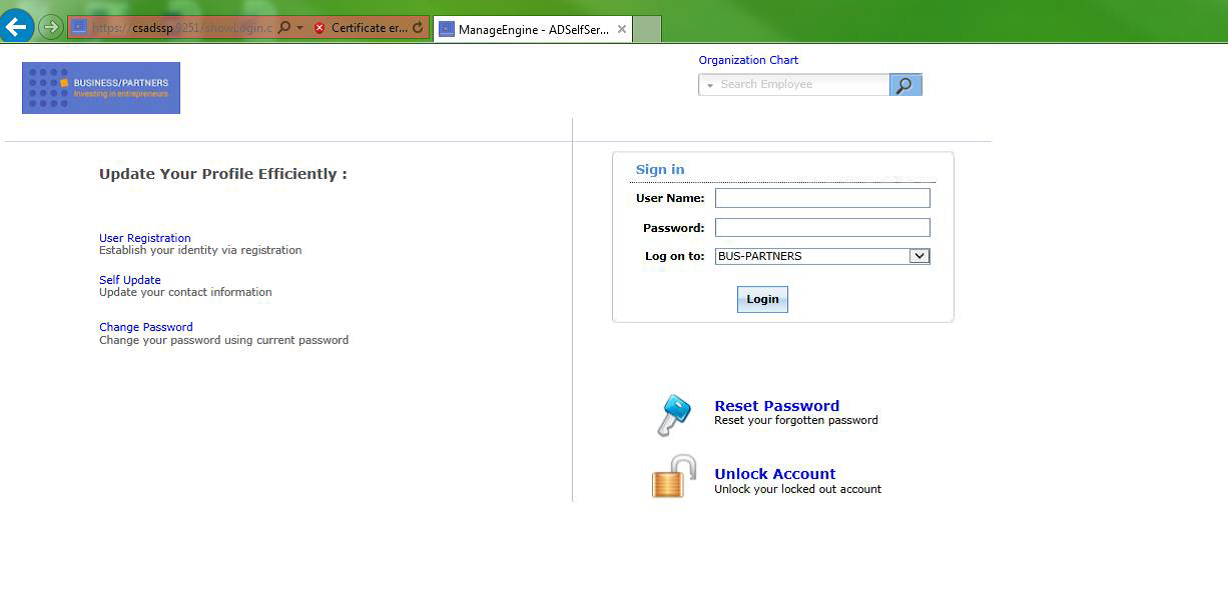
Enter your username and password and login
Step 3
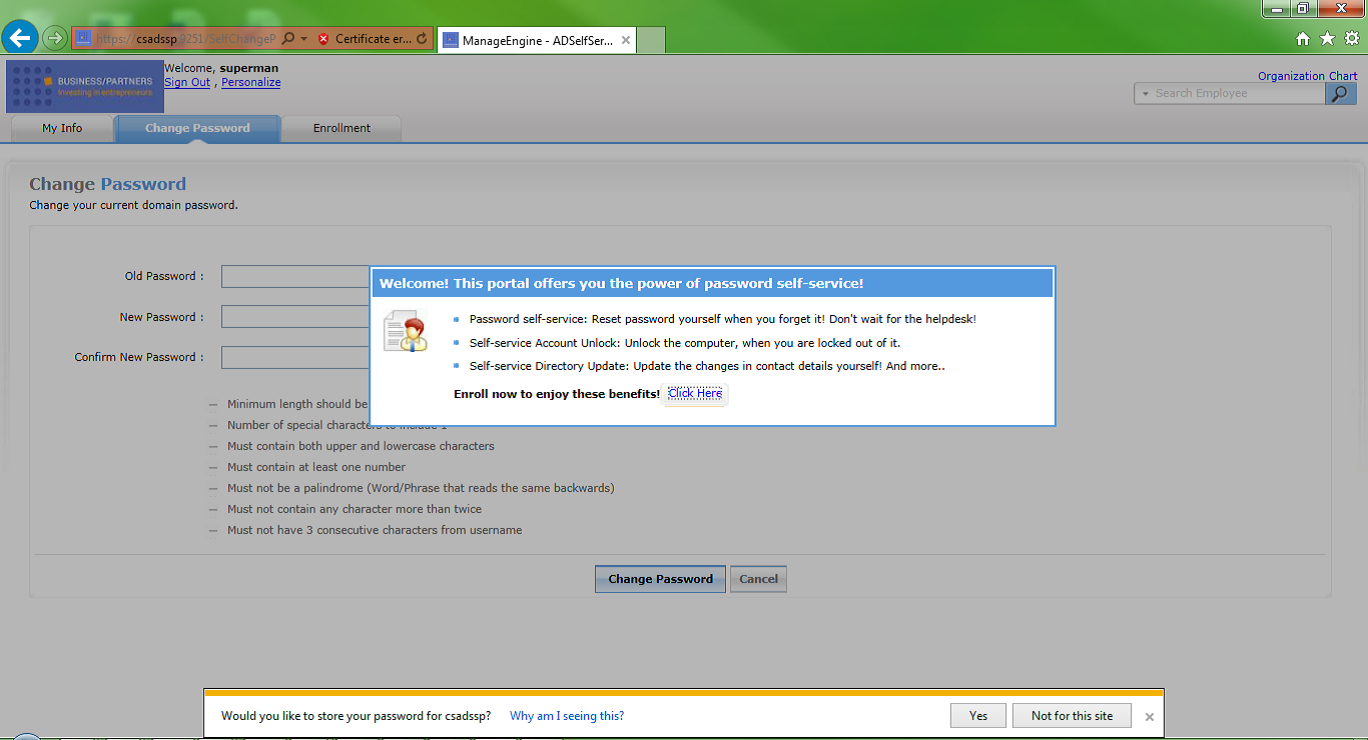
You will then be required to enrol yourself on the portal. Select the “click here” option.
Step 4
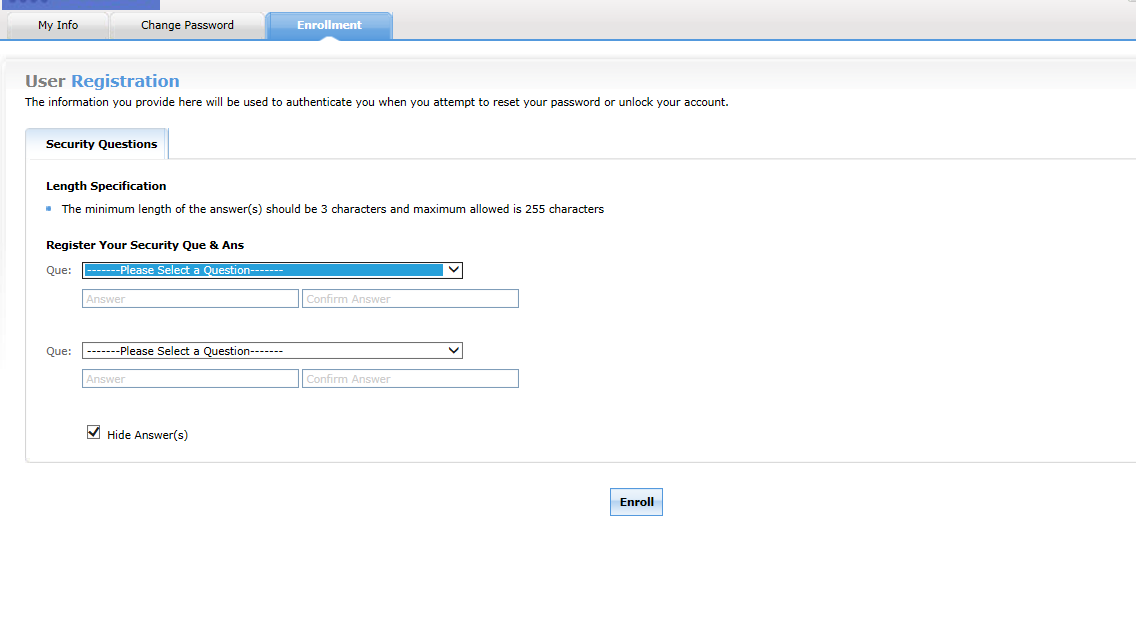
Select your questions, enter and confirm your answers.
Step 5
You have now enrolled successfully, then select the “My Info”
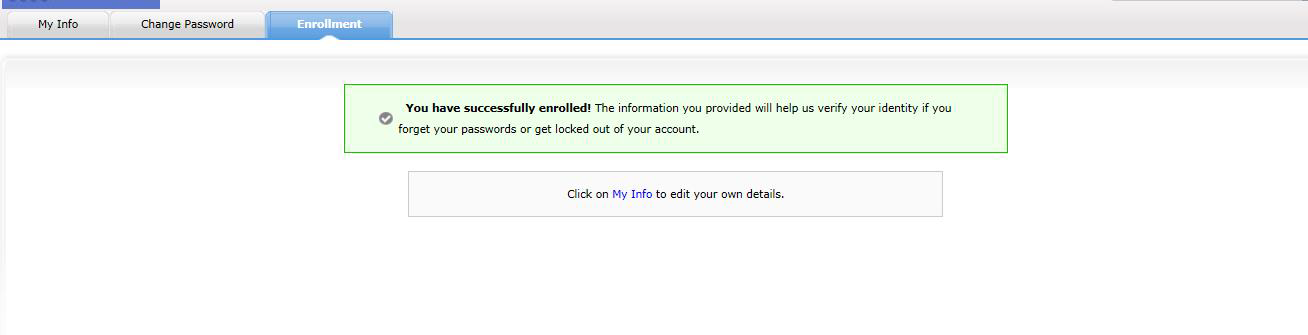
On the info page, update all your details.
(All fields that require numbers should not have any spacing between)
Step 6
Select “edit” next to manager, then search to narrow down the list and select your manager’s name and click OK.
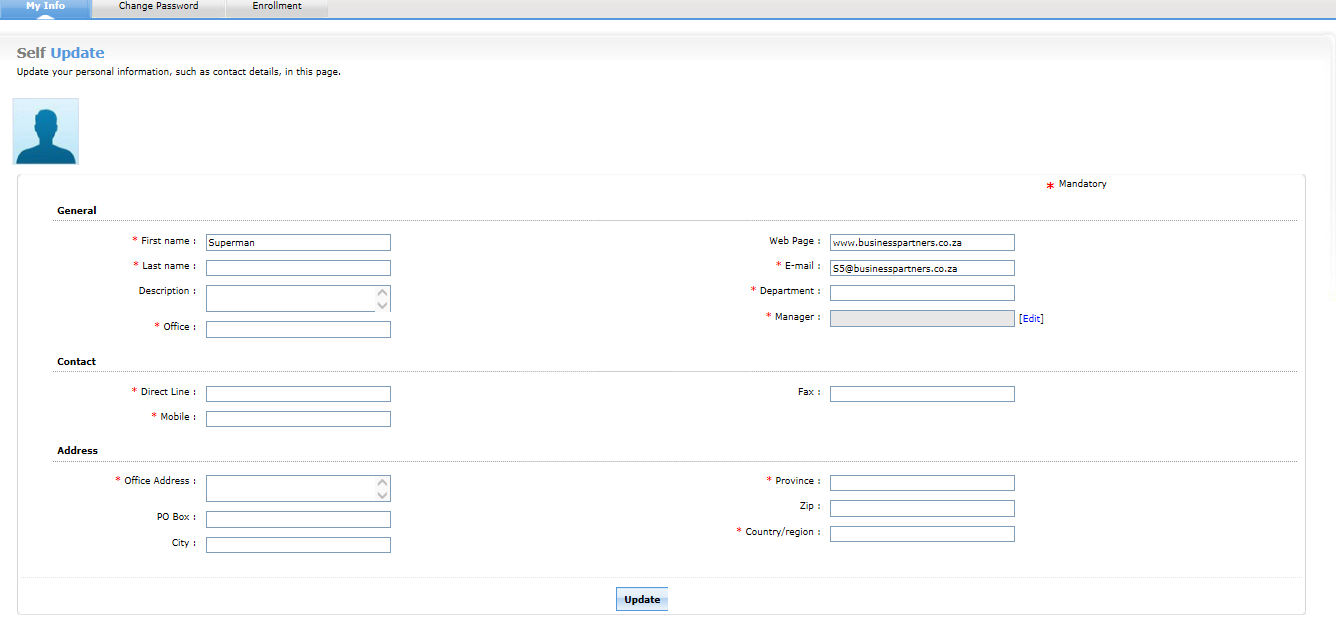
Once completed select “Update”.
Step 7
You will now have the option to change your password. There is also a list of complexity checks that you need to comply to in order to update your password.
Once done simply sign-out and exit the enrolment.
Comments
0 comments
Please sign in to leave a comment.