
SharePoint allows the creation of individual alerts which can be used to notify you in the event that a document library, list or document has been changed.
You can have as many alerts across multiple libraries as you require.
This article will show you how easy it is to setup a SharePoint alert for yourself.
Step 1.
Navigate to the relevant document, library or list on SharePoint you want an alert setup for.
Step 2.
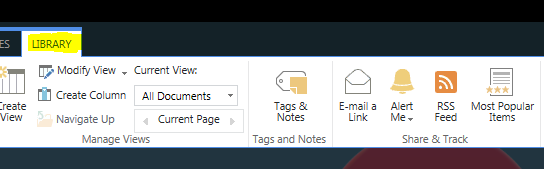
If you want to be alerted on a library level, Click the Library button on the top ribbon,
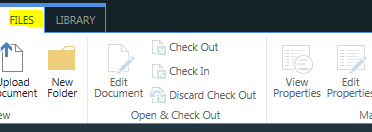
Or if you want to be alerted on a specific file, click the file in question, then click the File button on the top ribbon.
Step 3.
Now click the "Alert Me" button on the relevant tab and select "Set alert on this library" or "Set alert on this fie" depending on your previous selection.

Step 4.
Fill in the necessary, such as the frequency of alerts, the type of alerts and the email address to be alerted at.
Click "Ok" at the bottom of the alert window and you are all set. An alert will be sent out automatically based on your stored parameters.
Optional.
Should you wish to share a documents location, simply click on the "Email a Link" button on the same ribbon, after selecting the relevant document.

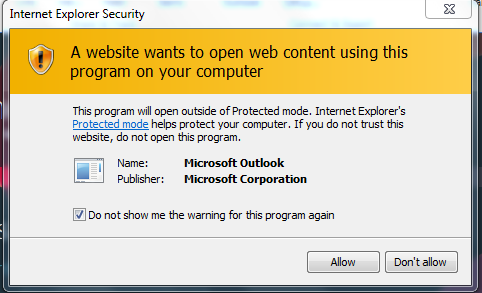
If this is your first time performing this action, you may be prompted to allow this function, tick the box as shown below and click "Allow"
As always, should you require further assistance with SharePoint alerts, please do not hesitate to contact ITSupport@businesspartners.co.za
Comments
0 comments
Please sign in to leave a comment.