
Introduction
The EFL testing process is now fully online and integrated with Microsoft Dynamics.
This allows the potential entrepreneur to complete the necessary test at home or on the go within 24 hours of receiving the link. This article will highlight the requirements necessary to successfully send a link and retrieve the relevant score once the test has been completed.
Since the test is taken on an individual level, the most logical record to activate this function in Microsoft Dynamics was on the contact record.
Emailing a link
There are a few ways to access the contact record:
Method 1.
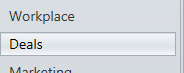
Click on Deals, then Contacts on the Microsoft Dynamics left action pane.

Now use the search function on the right side to search for the name of the entrepreneur. If duplicate results are returned, log a call with ITSupport@businesspartners.co.za
Method 2.
Click on Deals, then Applications on the Microsoft Dynamics left action pane
Search for or open the necessary application this test is related to.
On the top of the record window is a hyperlink called Account, click on the link to open the Account Record,
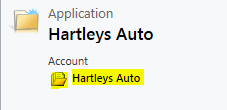
Once opened, the Account window will show a Primary Contact Hyperlink, click on that link to open the Contact record associated with the application.
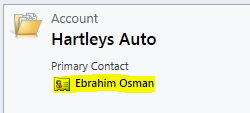
Once the necessary record has been opened, there are a few requirements to be met before a test can be sent.
All the necessary information, marked in red asterisks and blue plus symbols have to be completed.
Ensure that the field "Dynamics Application for EFL" has been completed by clicking on the lookup record icon and selecting the relevant application this test will be sent for.

Once this is done, the "Email EFL" button on the top ribbon will become available.
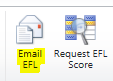
Click on "Email EFL" button and confirm, the email with a unique test link will be sent to the client within a few minutes.
Should your client have not received any link, kindly request them to check their necessary spam and/or junk email folders before contacting ITSupport@businesspartners.co.za for further investigation.
Please note the following important info:
- You must be the owner/assigned of the contact
- The "Allow Email Communication" has been set to "Allow" at the bottom of the Contact record
- You have filled in the necessary identification numbers
- Ensure that you have captured the Dynamics application number field, failure to-do so will result in an invalid link and the "Email EFL" button remaining unavailable.
Retrieving the Score
Once the client has confirmed completion of the test, access the same contact record. Click the "Request EFL Score" button on the top ribbon,
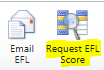
The score and confidence colour will be retrieved and stored on the contact record under their respective fields.

Please note the following important info:
- If the ID number has not been captured, the score will not be retrieved.
- The ID number must be captured without any spaces or whitespace characters
Thats it. If you have any issues during this process, do not hesitate to contact ITSupport@businesspartners.co.za and one of us will gladly assist.
Comments
0 comments
Please sign in to leave a comment.